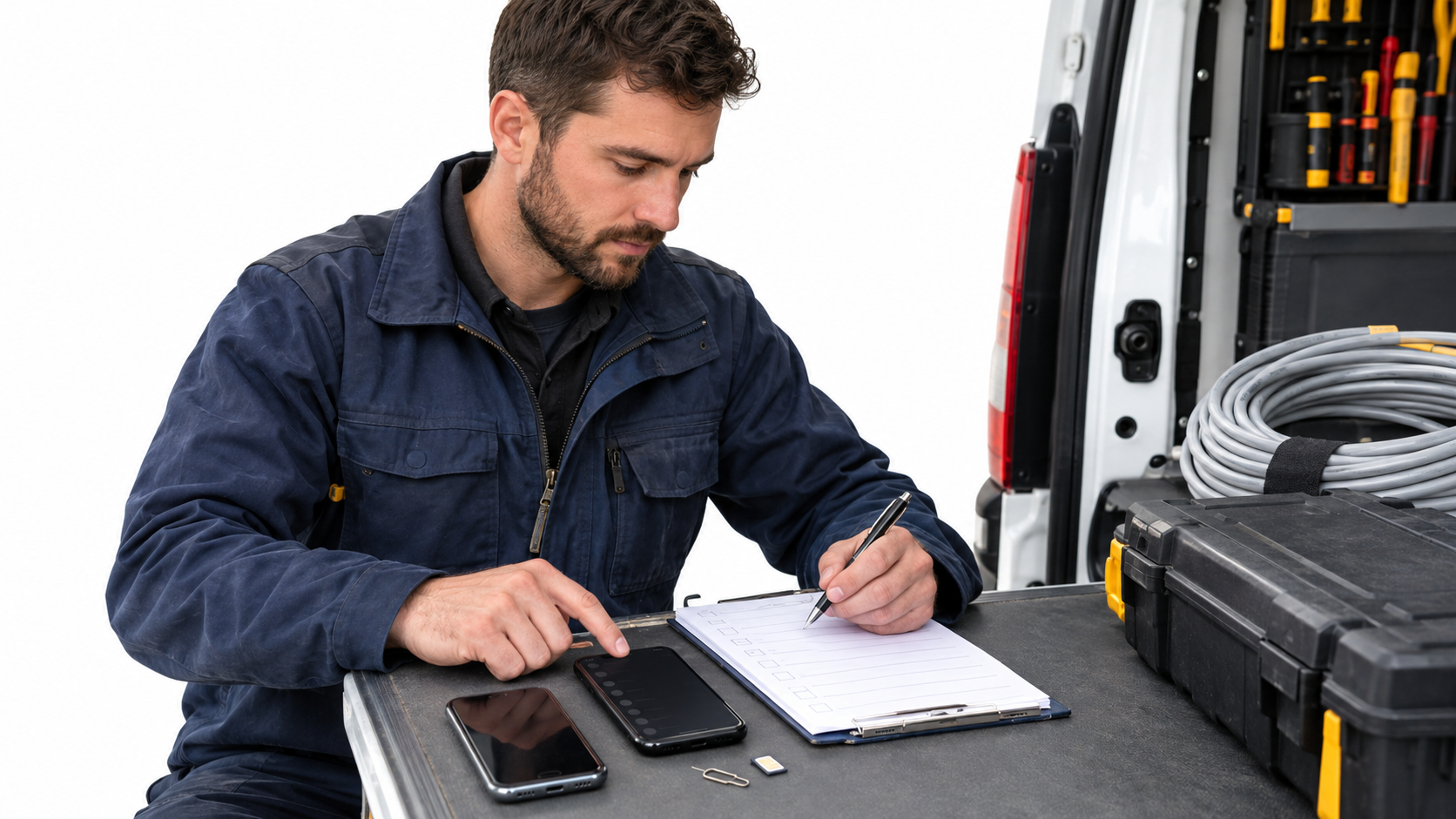
Quick answer: If an Android missed-call auto text is not sending, make one controlled call from a second phone, let it ring out, and check three separate events: did your business phone log the missed call, did the responder consider it eligible, and did an SMS actually reach the caller? That sequence is more useful than changing every setting at once.
This is a diagnostic checklist for a solo service-business owner using an Android phone with an active physical or eSIM mobile line that can send ordinary SMS. It does not assume SnapBack or another app has a confirmed defect. If you use a cloud phone number, a VoIP-only setup, or a shared team inbox, first check the provider’s own call-routing and texting logs; the on-device checks below may not apply.
Run one reproducible test before changing settings
- From a different phone number you control, call the Android business number directly. Let the phone ring until the call ends; do not reject it, answer it, or test from a blocked number.
- Record the time, the number called, the number that called, whether the missed call appears in the phone’s call history, whether an auto-text appears in the sending phone’s SMS conversation, and whether the other phone receives it.
- Send one ordinary manual SMS from the business phone to that second phone. This tests basic outbound SMS separately from the missed-call automation.
- If your app has an activity or send log, compare it with the phone’s call and message histories. An app log is a clue, not proof that the recipient received a message.
Use a consenting test number, not a customer’s call. Avoid repeated tests to the same caller without checking your app’s cooldown or repeat-contact rule; some responders intentionally suppress duplicates. If you need initial setup rather than fault isolation, start with the Android missed-call text-back setup guide.
If the call never appears as missed, check the call path
Confirm the incoming call reached the same Android handset and SIM/eSIM line you expect to use. If calls are forwarded to a receptionist, answered by another device, or diverted before this phone records an unanswered call, an on-device responder may have nothing to act on. Check the number actually dialed and the phone’s call history before blaming SMS permissions.
Also distinguish a declined call from one that rang out. Google’s Phone app quick responses are manual replies chosen while the phone rings, not an automatic reaction to a later missed call. The built-in versus automatic reply explainer covers that distinction. A controlled ring-out test removes that ambiguity.
If the call is logged but no reply is attempted, inspect eligibility
- Responder enabled? Open the app and confirm its automation and message are saved and active. Note any working-hours or quiet-hours rule; test inside an eligible window rather than assuming the app should send overnight.
- Excluded caller? Check contacts, blocked/spam handling, and any caller exclusion list. A number used in an earlier test may also be inside a duplicate-message cooldown. Inspect the actual rule before changing it.
- Permissions? On Android, open Settings → Apps → the responder → Permissions. Review the permissions the app says it needs for its documented function. Google explains that Phone, Call logs and SMS are distinct permission categories, and that unused apps can have permissions paused. Grant only permissions you understand and need; menu names vary by device.
- Background restrictions? Check Settings → Apps → the responder → Battery, plus your manufacturer’s sleeping-app controls. Android Battery Saver may limit background activity and delay some apps. Do not promise that disabling a restriction will cure every failure; change one setting, repeat the same test, and keep the result.
If your phone was recently updated or the app sat unused, permission and battery settings are especially worth reviewing. Google’s Android permission guide and battery guidance describe the platform controls; they do not certify behavior on your particular model.
If a reply is attempted but the other phone receives nothing, isolate SMS
If the manual SMS test also fails, inspect the mobile plan, signal, airplane mode and carrier messaging status before altering the responder. If manual SMS succeeds, compare the automated message thread and any in-app status, then test once more from a different eligible caller. A message shown as sent is not a delivery receipt for every handset and network.
On dual-SIM phones, verify which line handles the business call and which line is selected for outgoing SMS. A text from the wrong SIM can appear to be a failure when the test recipient is watching the other conversation. Check both phones rather than inferring the sender number from the app description. Some carriers or recipients can filter messages; ask the test recipient to check filtered conversations if the sending side shows an outgoing text.
Keep a small fault log and know when to escalate
Write down the phone model, Android version, app version, test time, relevant rule window, SIM used and which of the three events failed. Repeat after one change. If a missed call is present, the caller is eligible, permissions look correct, a manual SMS works, and the responder still never attempts a text, send that evidence to the app’s support channel. Do not include real customers’ phone numbers in a public review or screenshot.
For a service business, automation is only the first touch. Until a second-phone test succeeds under your normal working conditions, do not promise callers an instant reply or rely on it for urgent requests. A message cannot guarantee a booking, a callback, or emergency service.
SnapBack is offered on Google Play for Android missed-call text-back using the phone’s mobile line. If that setup matches your business, review its current listing and permissions, then test the installed app on your own handset rather than assuming the result from this checklist.